DevPortal
Description of performing a test using the DevPortal application
Go to the website https://cp.webapi.intercars.eu/devportal/apis
In the login window
a. enter login and password:
b. Please do not select Create an account - this functionality is temporarily unavailable
c. Please do not select Password Reminder - this functionality is temporarily unavailable - if you forget your password, please contact the IC to generate a new password
After logging in, the home screen is displayed with a list of available applications
a. 1 > API tab allowing you to perform basic operations with the API
b. 2 > Applications tab allowing you to generate API grouping applications
c. 3 > Logged-in user information
d. 4 > Main screen displaying details of the selected option 1 or 2

Go to the details by selecting API 1 and IC 4 (depending on the permissions, the logged-in user can see more APIs, e.g. IC, Dropshiping, Product). After selecting the details, we get a screen with:
a. General informations
b. Subscriptions - ability to view keys
c. Try Out - ability to test the application
d. Comments - ability to comment
e. Documentation - a detailed description will appear in future versions.

Subscriptions tab
a. Allows for the selected application to view Key and Secret for Sandbox and Production environments - DevPortal console values for the selected environments should be identical to the ClientID and ClientSecret provided by the IC.
b. Generate Access Token button allows you to generate a token to be used in testing

Try Out tab Allows you to test the service
a. Select the environment
b. Generate a Token - we can preview it here

c. Select the operation we want to test, read the documentation
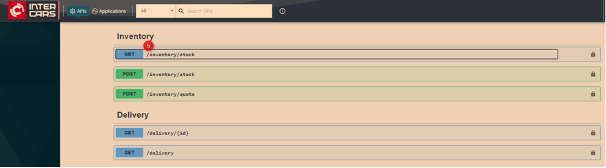
d. Select the "Try it out", specify the parameters and run "Execute"
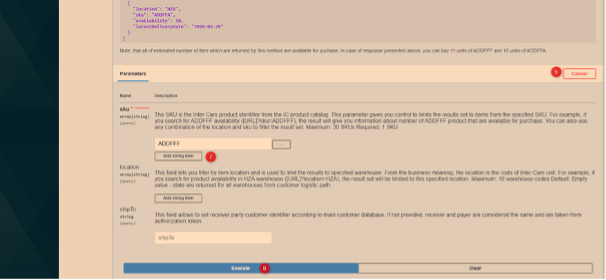
e. We can see the exact request sent to the API and the server's response.

f. From the Try it out tab we can call any operation on the IC API, including placing an order. Performing such an operation is equivalent to placing an order which will be immediately processed by the IC warehouse.
The Applications tab allows you to check the plans assigned to the application and security settings similarly to the option above.

After selecting the application details are displayed where we can
a. View the settings for the Production environment
b. View the settings for the Sandbox environment
c. View the settings for subscribed APIs
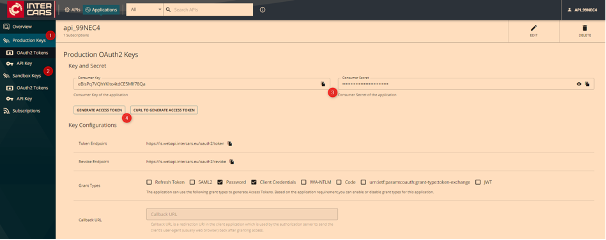
CAUTION !!! Please do not change the settings for Application and Subscription. Adding a new configuration will not be supported by IC. Please base on the ones that are created and treat this data only for preview.
We can also change the generated password to our own by selecting the user login and the option "Change Password".
